Views: 0 Author: Site Editor Publish Time: 2026-08-08 Origin: Site
Mini PCs offer incredible value for minimal desk space. However, their ultra-compact chassis leaves almost no room for hardware errors. Buying too little memory creates a severe performance bottleneck instantly. Meanwhile, overpaying for expensive factory-upgraded specifications often yields a poor return on your hardware investment. Upgrading memory and storage yourself represents the most cost-effective way to scale a small form factor computer. This assumes the unit is not locked down entirely by permanently soldered components.
We built this guide to establish a clear, workload-based framework. It will help you decide exactly what specifications to buy out-of-the-box. You will also learn when to choose a barebones unit so you can execute your own custom hardware build. Let us dive into sizing your system perfectly.
**16GB is the new baseline:** 8GB is insufficient for modern Windows 11 productivity, while 32GB+ is only necessary for virtualization, video editing, or heavy homelab use.
**Form factors matter:** A successful mini PC RAM upgrade requires SO-DIMM memory, not standard desktop U-DIMM, and storage upgrades are often restricted by M.2 length (e.g., 2280 vs. 2242).
**Thermals dictate storage:** Installing ultra-fast PCIe Gen 4 or Gen 5 NVMe drives in a mini PC without proper heatsinks often results in thermal throttling, neutralizing the speed advantage.
**Check the spec sheet for "Soldered":** Not all mini PCs can be upgraded; verifying LPDDR (soldered) vs. standard DDR (socketed) is a critical pre-purchase step.
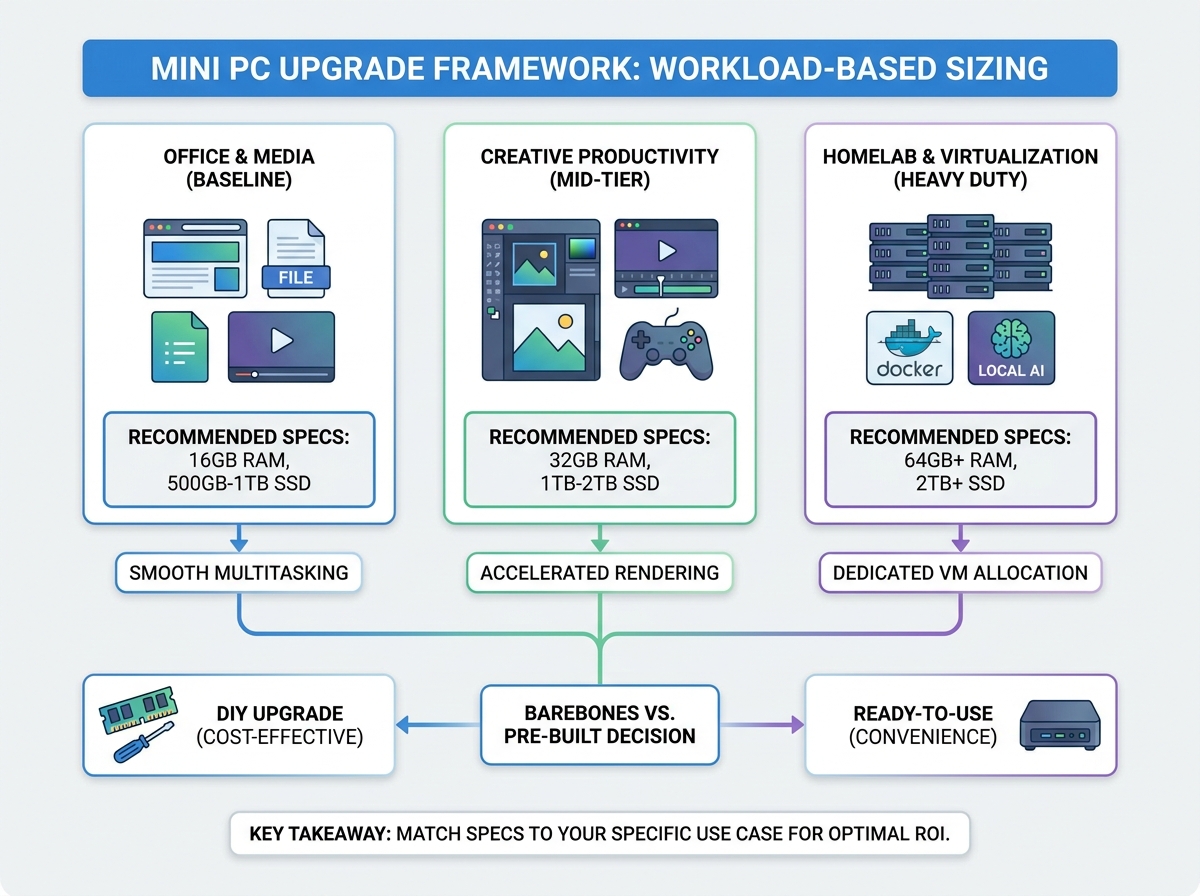
You should never buy hardware specifications in a vacuum. Hardware needs scale linearly alongside your daily use cases. Matching components to your exact workflow prevents both overspending and frustrating bottlenecks.
Basic computing tasks define the entry-level tier. This includes browser-based applications, 4K video playback, and standard Office software. Your primary goal here is smooth responsiveness. Browsers consume heavy resources when dozens of tabs remain open. The fundamental success metric for this tier is seamless multitasking. Your system must run smoothly without relying on page-file swapping. Page-file swapping occurs when RAM runs out and the system uses the much slower storage drive as temporary memory. This instantly degrades system speed.
The mid-tier demands more raw hardware power. Users in this category edit photos using Lightroom or Photoshop. They edit 1080p video projects. They might also enjoy light gaming relying strictly on integrated graphics. This workload requires faster data access and higher memory capacities. The success metric here focuses on accelerated render times. You also want stable frame rates during gameplay. Dual-channel memory allocation drives this performance boost. Standard office machines might survive on single-channel configurations, but creative workflows demand dual-channel bandwidth.
Power users push small computers to their absolute limits. This tier involves running Proxmox environments, multiple Docker containers, or local Large Language Models. These tasks consume massive amounts of system resources simultaneously. The success metric requires significant hardware overhead. You need ample memory allocation for dedicated virtual machines. You also need high-endurance storage drives. Virtualization platforms run continuous read and write cycles around the clock. Standard consumer drives wear out quickly under these extreme conditions.
Memory optimization starts by understanding baseline operating system requirements. Windows 11 reserves roughly three to four gigabytes of memory just to function. Integrated graphics processors reserve additional system memory for video processing tasks. You actually have much less usable memory than the sticker indicates. Planning a successful mini PC RAM upgrade requires knowing these precise capacity thresholds.
Here is how memory capacity breaks down across modern workloads:
8GB Capacity: This amount is largely obsolete for primary daily machines. You should only consider it for single-purpose digital signage. It also works for lightweight headless Linux servers. Windows 11 will struggle heavily here.
16GB Capacity: This hits the absolute sweet spot for most users. It easily satisfies eighty percent of typical computer buyers. It provides ample headroom for office workflows and heavy web browsing.
32GB Capacity: Heavy creative professionals require this tier. Moderate homelab users also need this capacity. Software developers running memory-intensive environments must treat this as their baseline.
64GB+ Capacity: This represents highly niche territory. You only need this extreme capacity for extensive virtualization clusters. Users testing local AI models locally also require massive memory pools.
You must also follow the dual-channel mandate. Always run two matched sticks of memory instead of one single high-capacity module. Installing two 8GB sticks performs significantly better than a single 16GB stick. Dual-channel configurations double the memory bandwidth. This specific setup drastically boosts integrated graphics performance. A single-channel configuration severely throttles gaming and video rendering tasks.
System Memory Sizing Chart
RAM Capacity | Target User Profile | Expected Multitasking Limit |
|---|---|---|
8GB | Digital Signage / Linux Server | Low (Basic OS functions only) |
16GB | Office Workers / Students | Medium (Dozens of browser tabs, office apps) |
32GB | Creators / Developers | High (VMs, 4K photo editing, large databases) |
64GB+ | AI Enthusiasts / Homelabs | Extreme (Multiple active servers, LLM instances) |
Storage dictates how many applications, games, and files your computer holds. It also determines how fast your system boots up or transfers data. Evaluating your exact capacity needs prevents immediate upgrade headaches down the road.
500GB Capacity: This size serves cloud-first users perfectly. It handles basic operating system installations alongside essential daily applications. You will struggle if you install large modern games.
1TB Capacity: We consider this the standard recommendation for most buyers. It allows comfortable room for software, applications, and local file storage. You will not face immediate storage constraints.
2TB+ Capacity: This tier becomes strictly necessary for local media libraries. Plex server operators need this space. Video editors require massive scratch disks. Large game libraries easily fill smaller drives.
You must approach storage speeds carefully. Many users overspend on premium PCIe Gen 4 or Gen 5 NVMe drives. We strongly advise taking a skeptical view of ultra-fast storage in ultra-small computers. These premium drives generate immense heat under heavy workloads.
Small chassis designs trap this generated heat quickly. High-tier drives inevitably hit their thermal limits inside tiny enclosures. The drive controller responds by severely throttling transfer speeds down to Gen 3 levels to prevent hardware damage. Your expensive premium drive effectively becomes a cheaper mid-tier drive under load. A reliable, cooler-running PCIe Gen 3 drive often proves superior. Alternatively, a mid-tier Gen 4 NVMe paired with a graphene heat spreader represents the smartest implementation reality. Always prioritize sustained thermal stability over peak theoretical benchmark speeds.
You cannot upgrade every small computer on the market. Manufacturers frequently lock down components to reduce manufacturing costs or save physical space. You must identify these upgrade blockers before purchasing any machine.
Memory type dictates upgradeability entirely. You must differentiate between SO-DIMM and LPDDR standards. SO-DIMM refers to standard laptop-style memory modules. You can easily remove and upgrade these socketed modules. LPDDR memory chips are permanently soldered directly to the motherboard. You cannot upgrade LPDDR systems under any circumstances. Check the manufacturer specification sheet carefully. If it lists "LPDDR5", your RAM capacity is permanent.
Storage form factors present another common compatibility trap. Most modern systems utilize M.2 NVMe drives. However, length matters significantly.
M.2 2280: This represents the standard length drive. It offers the widest aftermarket availability and the best pricing.
M.2 2242: Micro-sized computers often require this physically shorter drive. These drives are harder to find and typically cost more per gigabyte.
2.5-inch SATA Bays: Some slightly taller chassis models offer a secondary bay for traditional SSDs. This offers a highly affordable way to add bulk media storage.
Opening a tightly packed computer carries distinct physical risks. Manufacturers utilize delicate ribbon cables for Wi-Fi antennas. SATA connectors frequently attach directly to the removable bottom plate. If you pull the bottom plate off too aggressively, you will tear these fragile ribbons. Furthermore, small chassis screws strip incredibly easily. Always use precise, properly sized screwdrivers.
You must also navigate warranty concerns. Many manufacturers place "Warranty Void If Removed" stickers over access screws. These stickers reside in a legal grey area. Depending on regional consumer protection laws, simply opening your device might not legally void the warranty. However, manufacturers might still fight your support claims. You should research the specific brand's policy regarding user modifications.
Buyers generally choose between two purchasing paths. You can buy a fully assembled system ready to boot. Alternatively, you can buy a barebones unit. A barebones machine includes the processor, motherboard, and chassis. It contains zero memory and zero storage. Evaluating the return on investment for a DIY build requires simple math.
The shortlisting logic depends heavily on manufacturer pricing tiers. Companies frequently overcharge for memory and storage upgrades at the factory. Let us examine a common scenario. A manufacturer might charge a massive premium to upgrade a base model from 16GB to 32GB of memory. Sometimes this factory upgrade costs well over a hundred dollars.
However, you can purchase an excellent 32GB aftermarket memory kit yourself for significantly less money. If the manufacturer premium is large, but aftermarket parts are cheap, buying barebones makes financial sense. The DIY path becomes the optimal choice. You get better components for less total money.
There is one major exception to this logic. Enterprise buyers and office fleet managers should usually avoid barebones systems. Out-of-the-box readiness saves valuable IT deployment time. Unified warranty support means a single point of contact if a system fails. For businesses, saving a few dollars on hardware cannot justify the extra labor hours required to assemble dozens of machines manually.
Properly sizing your small footprint computer prevents wasted money and guarantees smooth daily operation. Most general users will find optimal performance by aiming for 16GB of memory paired with a 1TB storage drive. Power users handling creative workloads or heavy multitasking should establish 32GB as their absolute minimum baseline. Always verify that your chosen model uses socketed SO-DIMM slots rather than soldered memory chips.
As an actionable next step, closely review your target machine's specification sheet. Look specifically for terms like "SO-DIMM" and "M.2 2280" to ensure future upgrade paths remain wide open. Finally, if you currently own a system, download a hardware monitor like HWiNFO. Track your actual memory usage during your heaviest daily tasks to verify exactly where your current bottlenecks exist before buying new parts.
A: This heavily depends on the manufacturer and your local consumer protection laws. Many brands allow user upgrades and design their chassis for easy access. However, breaking a factory seal sticker might cause support delays. Always check the brand's official warranty terms before opening the case.
A: You should avoid mixing different brands, capacities, or speeds. Mismatched memory forces the system to downclock to the lowest common speed. It also frequently causes severe system instability, random reboots, and blue screens. Always buy and install matching two-stick kits for stable dual-channel performance.
A: Small form factor computers often lack advanced BIOS settings required to enable XMP or EXPO overclocking profiles. Consequently, high-speed gaming memory defaults to slower standard JEDEC profiles. You should buy memory that natively supports your target speed via JEDEC rather than relying on XMP.
A: Many slightly taller models include a 2.5-inch SATA bay inside the bottom cover. Premium models might even feature a secondary M.2 NVMe slot. However, ultra-thin models usually only support one single drive. You must review the specific layout specifications of your model before buying secondary storage.