Views: 0 Author: Site Editor Publish Time: 2026-08-06 Origin: Site
Hybrid work environments constantly evolve. Professionals heavily rely on expensive, fragile laptops. They often carry these devices between fully equipped offices, modern co-working spaces, and hotel rooms. However, many people now question this necessity. You frequently find high-quality monitors and keyboards waiting at your destination. A compact mini pc serves as a highly strategic alternative here. It gives you true desktop-level ergonomics. It delivers robust processing performance. Best of all, you skip the heavy premium markup associated with ultra-mobile hardware.
Our goal is simple. We want to outline a clear, objective framework. You can use it to evaluate form factors, performance metrics, and enterprise-grade security. This ensures you experience seamless transitions. You can switch from stationary desk work to active business travel effortlessly. You will learn exactly how to balance portability, power, and practicality.
A viable portable mini PC for office use must balance adequate thermal management with a sub-1-liter chassis.
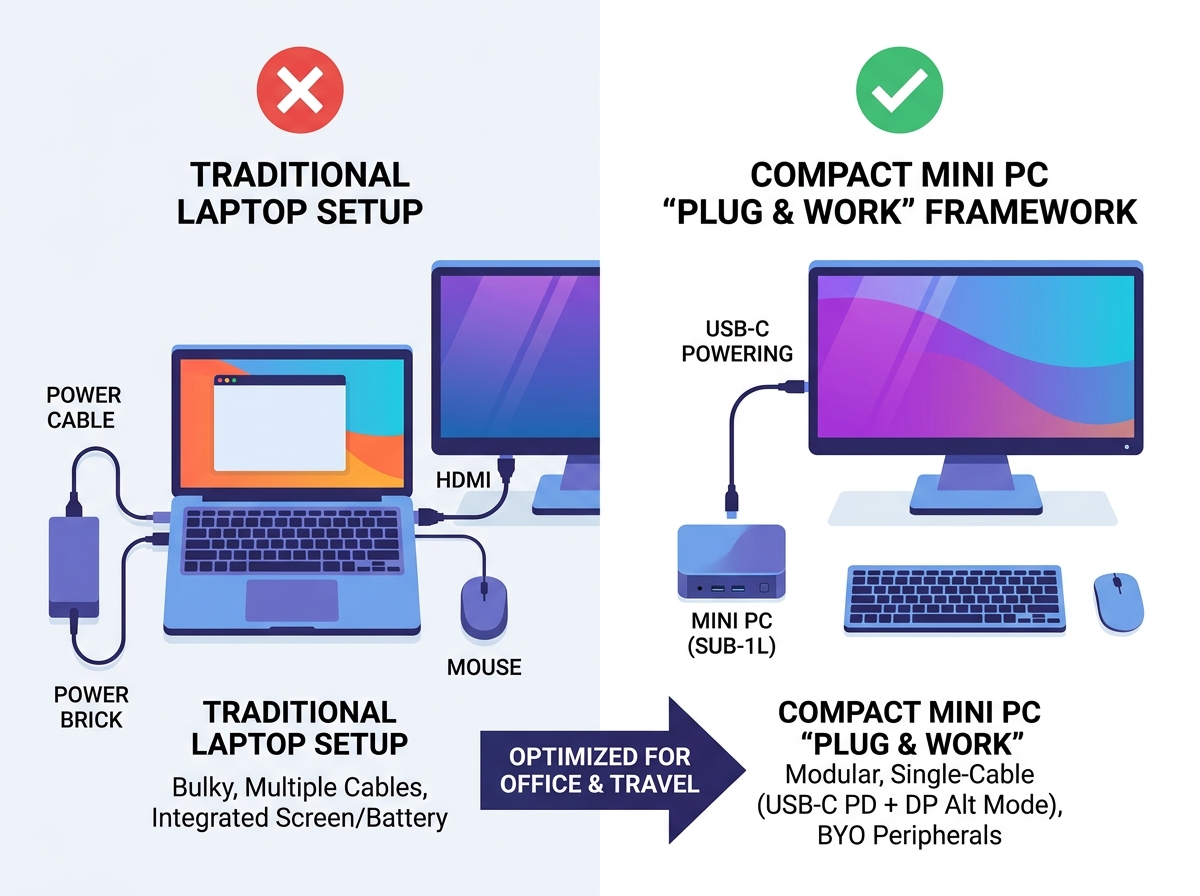
Single-cable connectivity (USB-C with Power Delivery and DisplayPort Alt Mode) is the most critical feature for frequent travelers.
Total travel weight matters more than the PC's weight; always factor in the size of the power adapter.
Enterprise security—specifically TPM 2.0 and Kensington lock compatibility—is non-negotiable for devices handling business data on the road.
Laptops dominate the corporate world. They offer an all-in-one package. However, you pay a steep price for miniaturized screens and thin keyboards. Mini PCs eliminate these specific costs. They strip away the built-in display. They remove the complex battery systems. They ignore ultra-thin laptop engineering constraints. This allows you to reallocate your hardware budget. You can invest directly into better CPUs. You can buy significantly more RAM.
We live in a "Bring Your Own Peripherals" reality. Think about your typical business trip. Modern hotel rooms feature large smart TVs. Hot-desks offer dual-monitor setups. Branch offices provide universal docking stations. You often keep your laptop lid closed anyway. The laptop screen becomes redundant. A compact mini pc capitalizes on this existing infrastructure.
Ergonomics and lifespan also play a huge role. Fixed-desk ergonomics prevent back pain. You use a full-size keyboard. You look at a large, eye-level monitor. Furthermore, mini PCs boast incredible longevity. Laptops rely on lithium-ion batteries. These batteries degrade over time. They swell. They lose their charge capacity. Mini PCs simply bypass this fundamental hardware flaw. They run reliably for years.
We must acknowledge the primary implementation risk. You depend entirely on external power and external displays. Some view this as a dealbreaker. We frame it differently. It is a predictable variable. You simply need to plan ahead. Call your hotel to confirm TV port access. Check your co-working space amenities. If you prepare, the dependency becomes a non-issue.
Always carry a lightweight, foldable travel keyboard.
Keep a universal HDMI cable in your travel bag.
Map out the monitor availability at your primary travel destinations.
Hardware selection requires discipline. We often see buyers over-specifying their machines. They buy high-wattage gaming processors. This is a common mistake. Heavy Excel modeling demands processing power. CRM management needs quick response times. Intensive browser usage requires memory. However, modern mid-tier processors handle these tasks flawlessly. We highly recommend standard Intel Core i5 or AMD Ryzen 5 chips.
Avoid massive gaming CPUs. Small chassis designs cannot handle high heat. The CPU will experience thermal throttling. The system slows down to prevent melting. This ruins your workflow. Stick to efficient, mid-tier silicon.
You need strict baselines for memory and storage. An effective portable mini pc for office multitasking needs 16GB of RAM. Do not accept 8GB. Browsers consume memory quickly. Video calls demand resources. 16GB ensures seamless transitions between applications. Storage speed also dictates your travel experience. Advocate for PCIe NVMe SSDs. We recommend a 512GB minimum capacity. You want fast boot times. When you arrive at a new branch office, you need to set up instantly.
Do not ignore thermal management and noise. Poor acoustics ruin shared office experiences. A whiny fan disrupts your colleagues. You should check professional reviews. Look specifically for fan noise under heavy loads. Verify the presence of active cooling. Fanless models sound appealing. They operate silently. However, they trap heat. Fanless systems often throttle during prolonged video calls. Active cooling guarantees sustained performance.
Determine your primary daily software applications.
Select a mid-tier CPU (Core i5 or Ryzen 5).
Verify the system includes exactly 16GB of dual-channel RAM.
Confirm the storage uses an NVMe SSD interface.
Read independent acoustic reviews regarding fan noise.
Hardware Target Chart
Component | Recommended Office Baseline | What to Avoid |
|---|---|---|
Processor (CPU) | Intel Core i5 / AMD Ryzen 5 | High-wattage gaming CPUs (i9/Ryzen 9) |
Memory (RAM) | 16GB DDR4 or DDR5 | 8GB (insufficient for modern browsers) |
Storage (SSD) | 512GB PCIe NVMe | SATA SSDs or mechanical HDDs |
Cooling | Quiet active fan cooling | Completely fanless (risk of throttling) |
Portability goes beyond the physical computer. Buyers often fall into the power brick trap. The industry hides this detail frequently. A machine might weigh only 400g. It feels incredibly light. Then, you see the proprietary power adapter. The brick alone weighs 500g. Your total travel weight suddenly doubles. You must always evaluate the complete package.
Chassis durability is paramount. You will pack and unpack this device constantly. Luggage endures compression. Bags get dropped. Standard plastic enclosures crack under pressure. We strongly recommend aluminum materials. Reinforced magnesium-alloy also works perfectly. Metal chassis survive the harsh realities of airport security bins. They protect your internal components from flex damage.
Volume and dimensions dictate your packing strategy. You want the ideal travel size. This typically means under 0.6 liters in volume. A device this small slips effortlessly into a standard messenger bag. It sits neatly alongside your portable monitor. It leaves room for your wireless mouse. If you choose a chassis larger than 1 liter, you lose the primary benefit. You might as well carry a laptop at that point.
Ignoring the weight of the required power supply.
Choosing glossy plastic covers prone to scratching and cracking.
Buying thick, cube-shaped designs hard to slide into flat bag compartments.
Your physical ports determine your success on the road. One-cable solutions represent the ultimate travel feature. Look for USB-C ports supporting both Power Delivery (PD) and DisplayPort (DP) Alt Mode. This combination is magic. Your monitor plugs into the wall. You run a single USB-C cable from the monitor to the computer. The monitor powers the computer. The computer sends video back to the monitor. This eliminates the bulky power adapter entirely.
You still need legacy port availability. Modern standards are great. Reality is often older. You need at least two standard USB-A ports. Wireless keyboard dongles require them. Wireless mouse receivers need them. You also need a full-sized HDMI port. This is absolutely crucial. Hotel TVs rarely support USB-C video. Older office projectors exclusively use HDMI. Without it, you cannot present your work.
Wireless reliability requires modern standards. You will work in congested environments. Airport lounges have hundreds of overlapping signals. Corporate lobbies suffer from interference. You need Wi-Fi 6 or Wi-Fi 6E. These standards handle crowded networks beautifully. You also need Bluetooth 5.2 or higher. This ensures your wireless headphones stay connected during important calls.
Do not forget VESA mounting. This applies to semi-permanent office setups. A VESA bracket attaches the computer directly behind your monitor. It completely hides the device. It clears your desk space. Most quality models include this bracket in the box. It offers a brilliantly clean aesthetic for your home office.
Essential Connectivity Ports Matrix
Port Type | Minimum Quantity | Primary Use Case on the Road |
|---|---|---|
USB-C (PD + DP Alt) | 1 | Single-cable power and video from modern monitors. |
USB-A (3.0+) | 2 | Wireless peripheral dongles and legacy flash drives. |
HDMI (Full Size) | 1 | Connecting to hotel room TVs and older projectors. |
Audio Jack (3.5mm) | 1 | Wired headsets for private video calls. |
Business data requires extreme protection. Travel introduces physical risks. Devices move through airports. You leave them in hotel rooms. Theft happens frequently. Hardware encryption is your first line of defense. You must ensure the device includes a physical TPM 2.0 module (Trusted Platform Module). This chip is mandatory. It enables Windows BitLocker encryption securely.
If a thief steals your hardware, TPM 2.0 ensures they get nothing. Your drive remains encrypted. They cannot access your client data. They cannot read your corporate emails. Without this hardware module, software encryption can be bypassed. Never buy a travel computer lacking TPM 2.0.
Physical security provides peace of mind. You will use public co-working spaces. You might need to grab a coffee. You cannot pack up your entire desk every time. Highlight the importance of a Kensington Lock slot. A simple cable ties your machine to the desk. It stops casual snatch-and-grab thefts instantly. It is a tiny slot. It provides massive relief.
Operating system choices impact IT compliance. Consumer electronics usually ship with Windows Home. This causes immediate problems. Windows Home cannot join corporate domains. It lacks advanced network management tools. We recommend ensuring the device supports Windows 11 Pro. It integrates seamlessly into corporate IT network policies. It communicates properly directly into Active Directory. Check this specification before purchasing. Upgrading later costs extra money and time.
Verify TPM 2.0 presence in the BIOS specifications.
Locate the physical Kensington lock slot on the chassis photos.
Confirm the pre-installed OS is Windows 11 Pro, not Home.
Choosing the right hardware fundamentally transforms your business travel experience. You just need to follow a clear shortlisting logic. If you are a heavy traveler, prioritize single-cable USB-C connectivity. Look for highly durable aluminum builds. This minimizes cable clutter. It survives rough baggage handling.
If you split your time between a home office and a corporate desk, shift your focus. Prioritize maximum CPU and RAM configurations. Ensure the device includes a VESA mount. This creates a powerful, invisible desktop experience in both locations. The form factor gives you ultimate flexibility.
Your next steps are highly actionable. First, audit your typical travel destinations. Check if your favorite hotels offer accessible HDMI ports on their TVs. Second, consult your internal IT department. Confirm their exact requirements for Windows Pro and TPM 2.0 encryption. Once you have this data, you can confidently finalize your purchase. You will enjoy a lighter bag and a faster workflow.
A: Yes, via HDMI. However, hotel TVs often have locked input sources or aggressive overscan settings, so users may need to adjust aspect ratios in the PC's display settings.
A: No. Unlike laptops, mini PCs require continuous external power. If working in transit (e.g., on a plane) is required, a laptop remains the necessary tool.
A: Only if the mini PC supports USB-C Power Delivery (PD) input and the power bank can output the required wattage (typically 65W to 100W). Standard 15W phone chargers will not work.
A: While the lack of a screen makes them more durable than laptops, it is highly recommended to carry them in hand luggage to prevent hard-drive damage (if not using an SSD), chassis crushing, and potential theft.